> ## Documentation Index
> Fetch the complete documentation index at: https://gr-docs.aporia.com/llms.txt
> Use this file to discover all available pages before exploring further.
# Projects overview
> To integrate Aporia Guardrails, you need to create a Project, which groups the configurations of multiple policies. Learn how to set up projects with this guide.
To integrate Aporia Guardrails, you need to create a **Project**. A Project groups the configurations of multiple policies.
A policy is a specific safeguard against a single LLM risk. Examples include [RAG hallucinations](/policies/rag-hallucination), [Restricted topics](/policies/restricted-topics), or [Prompt Injection](/policies/prompt-injection). Each policy offers various customization capabilities, such as adjustable sensitivity levels, or topics to restrict.
Each project in Aporia can be connected to one or more LLM applications, *as long as they share the same policies*.
## Creating a project
To create a new project:
1. On the Aporia [dashboard](https://guardrails.aporia.com/), click **Add project**.
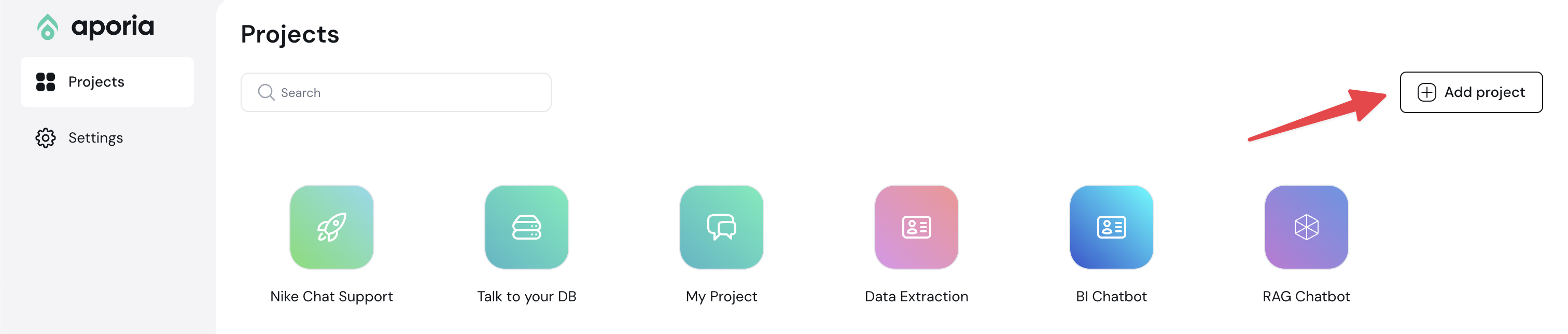 2. In the **Project name** field, enter a friendly project name (e.g., *Customer support chatbot*). Alternatively, select one of the suggested names.
3. Optionally, provide a description for your project in the **Description** field.
4. Optionally, choose an icon and a color for your project.
2. In the **Project name** field, enter a friendly project name (e.g., *Customer support chatbot*). Alternatively, select one of the suggested names.
3. Optionally, provide a description for your project in the **Description** field.
4. Optionally, choose an icon and a color for your project.
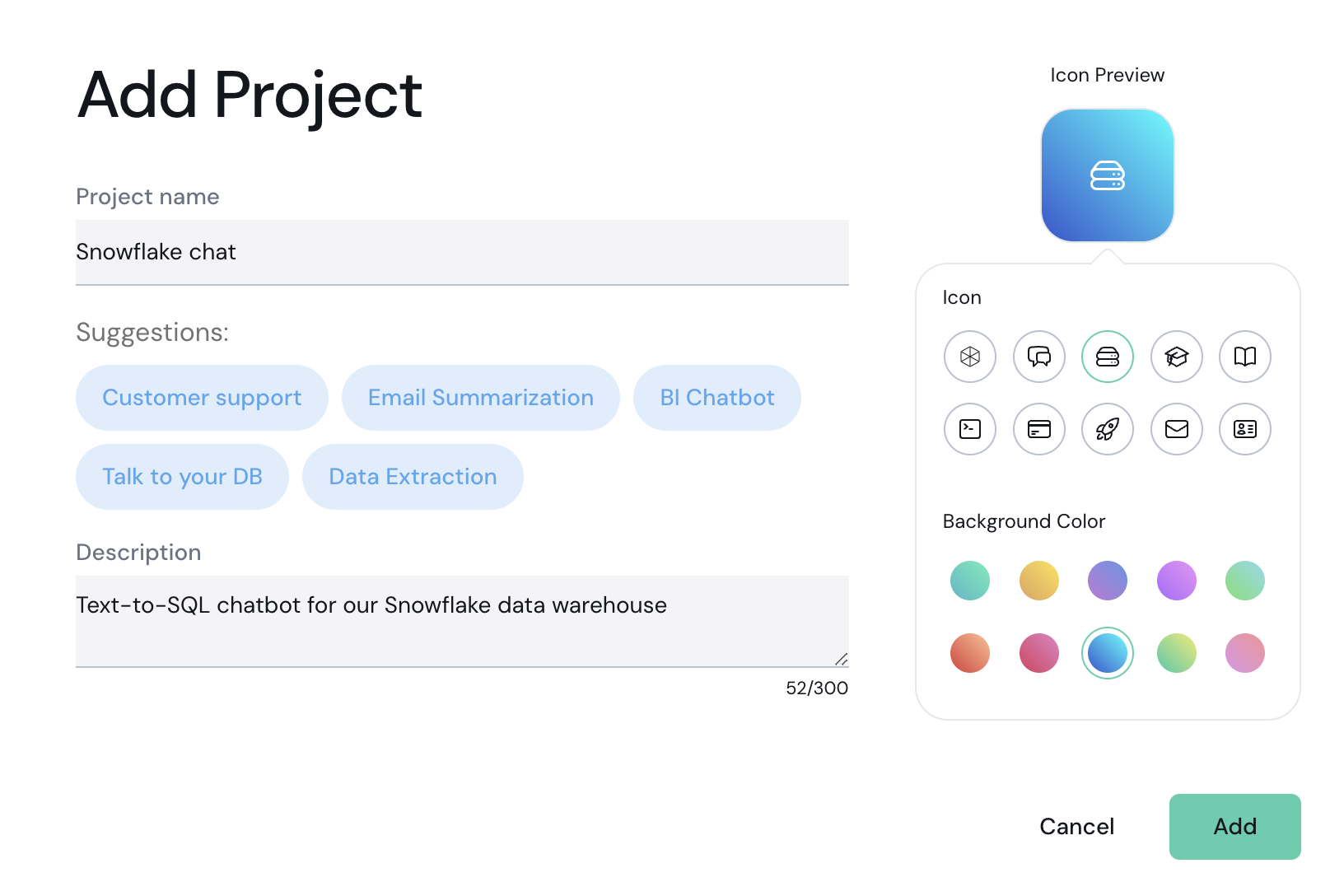 5. Click **Add**.
## Managing a Project
Each Aporia Guardrails project features a dedicated dashboard to monitor its activity, customize policies, and more.
### Master switch
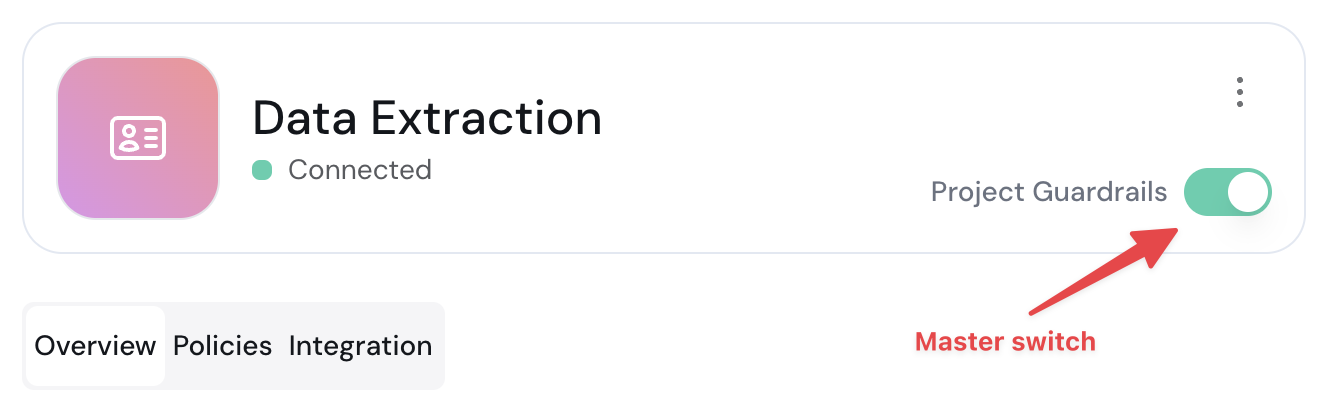
Each project includes a **master switch** that allows you to toggle all guardrails on or off with a single click.
Notes:
* When the master switch is turned off, the [OpenAI Proxy](/fundamentals/integration/openai-proxy) proxies all requests directly to OpenAI, bypassing any guardrails policy.
* With the master switch turned off, detectors do not operate, meaning you will not see any logs or statistics from the period during which it is off.
5. Click **Add**.
## Managing a Project
Each Aporia Guardrails project features a dedicated dashboard to monitor its activity, customize policies, and more.
### Master switch
Each project includes a **master switch** that allows you to toggle all guardrails on or off with a single click.
Notes:
* When the master switch is turned off, the [OpenAI Proxy](/fundamentals/integration/openai-proxy) proxies all requests directly to OpenAI, bypassing any guardrails policy.
* With the master switch turned off, detectors do not operate, meaning you will not see any logs or statistics from the period during which it is off.
 ### Project overview
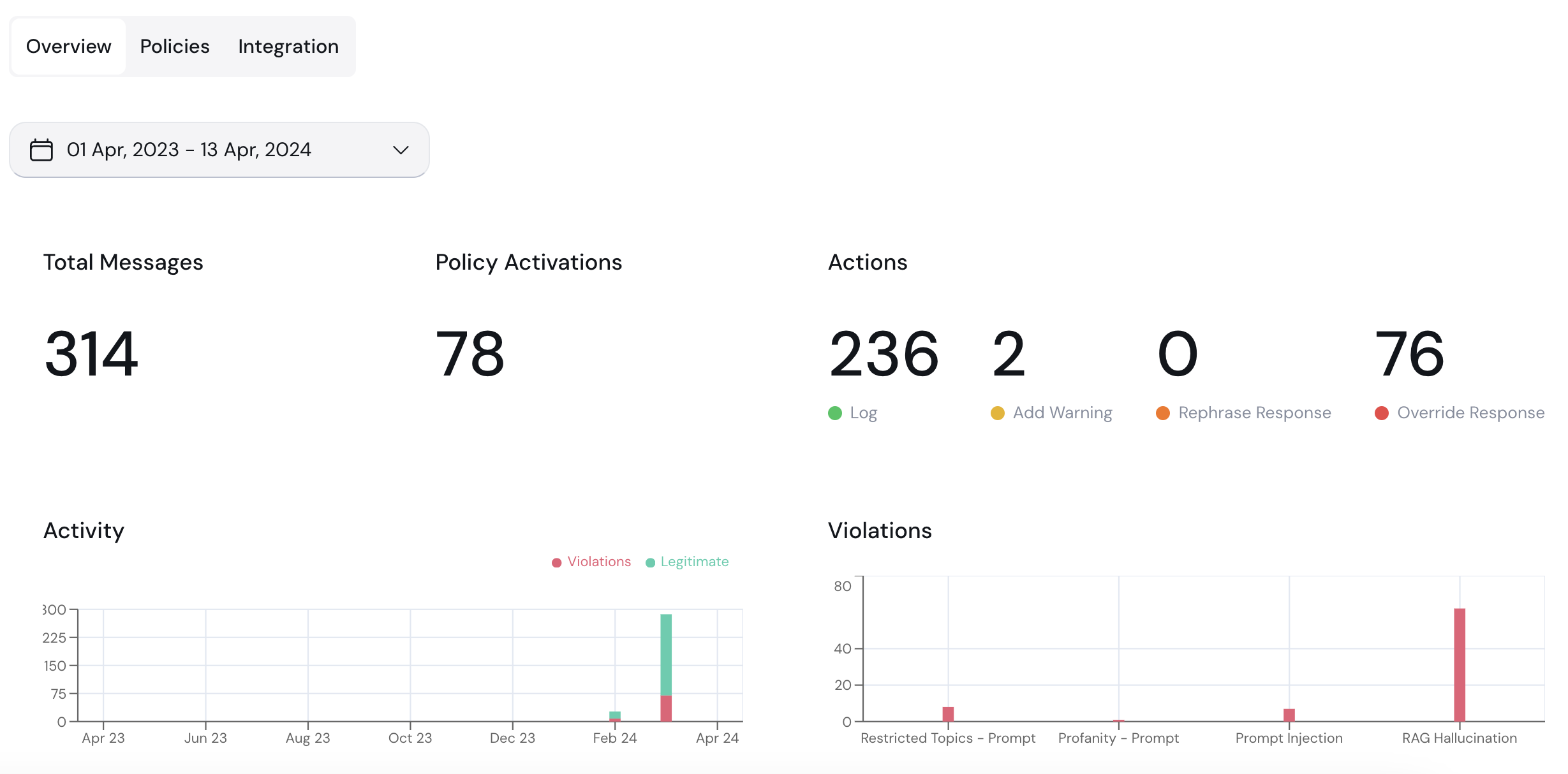
The **Overview** tab allows you to monitor the activity of your guardrails policies within this project.
You can use the time period dropdown to select the time period you wish to focus on.
If a specific message (e.g., a user's question in a chatbot, or an LLM response) is evaluated by a specific policy (e.g., Prompt Injection), and the policy does not detect an issue, this message is tagged as legitimate. Otherwise, it is tagged as a violation.
### Project overview
The **Overview** tab allows you to monitor the activity of your guardrails policies within this project.
You can use the time period dropdown to select the time period you wish to focus on.
If a specific message (e.g., a user's question in a chatbot, or an LLM response) is evaluated by a specific policy (e.g., Prompt Injection), and the policy does not detect an issue, this message is tagged as legitimate. Otherwise, it is tagged as a violation.
 You can currently view the following data:
* **Total Messages:** Total number of messages evaluated by the guardrails system. Each message can be either a prompt or a response. This count includes both violations and legitimate messages.
* **Policy Activations:** Total number of policy violations detected by all policies in this project.
* **Actions:** Statistics on the actions taken by the guardrails.
* **Activity:** This chart displays the number of violations (red) versus legitimate messages (green) over time.
* **Violations:** This chart provides a detailed breakdown of the specific violations detected (e.g., restricted topics, hallucinations, etc.).
### Policies
The **Policies** tab allows you to view the policies that are configured for this project.
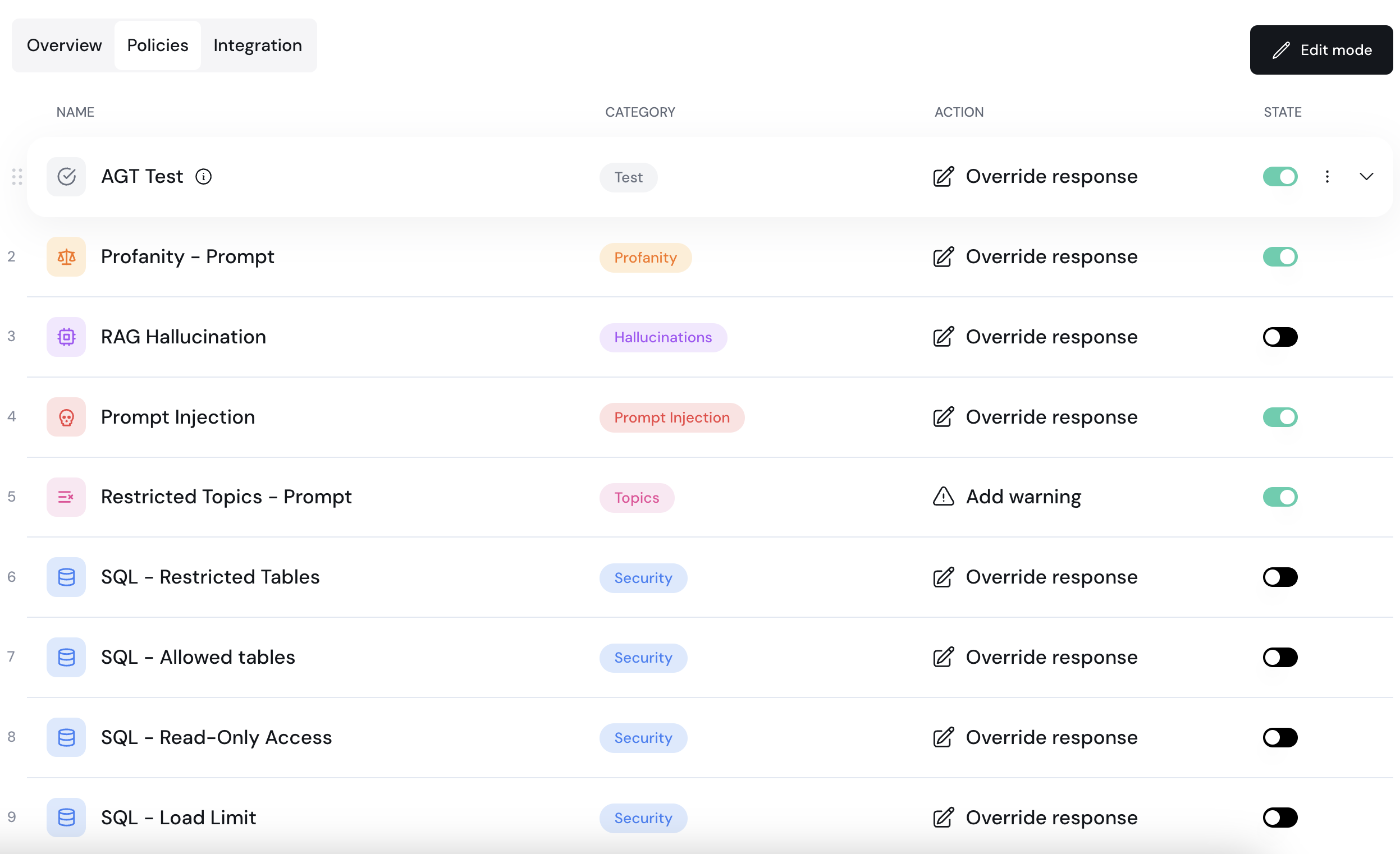
In each policy, you can see its name (e.g., SQL - Allowed tables), what category this policy is part of (e.g., Security), what action should be taken if a violation is detected (e.g., Override response), and a **State** toggle to turn this policy on or off.
You can currently view the following data:
* **Total Messages:** Total number of messages evaluated by the guardrails system. Each message can be either a prompt or a response. This count includes both violations and legitimate messages.
* **Policy Activations:** Total number of policy violations detected by all policies in this project.
* **Actions:** Statistics on the actions taken by the guardrails.
* **Activity:** This chart displays the number of violations (red) versus legitimate messages (green) over time.
* **Violations:** This chart provides a detailed breakdown of the specific violations detected (e.g., restricted topics, hallucinations, etc.).
### Policies
The **Policies** tab allows you to view the policies that are configured for this project.
In each policy, you can see its name (e.g., SQL - Allowed tables), what category this policy is part of (e.g., Security), what action should be taken if a violation is detected (e.g., Override response), and a **State** toggle to turn this policy on or off.
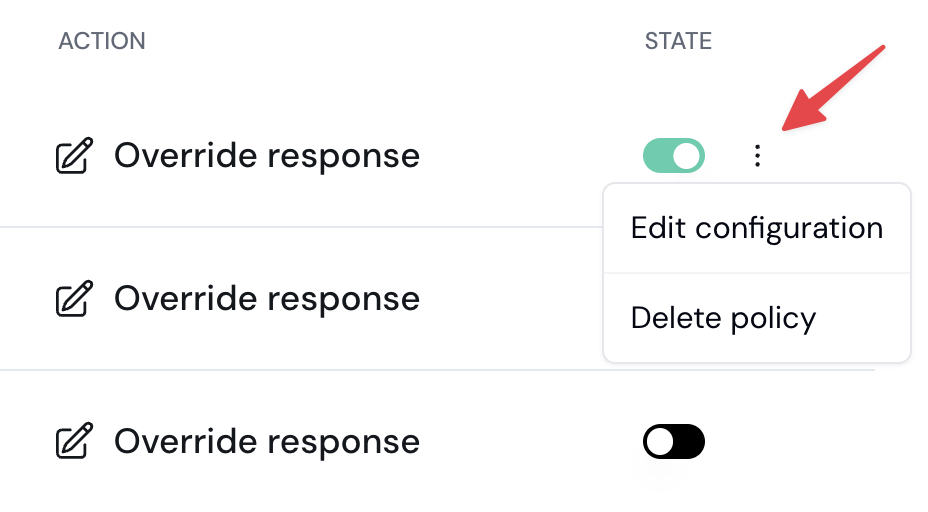
 To quickly edit or delete a policy, hover it and you'll see the More Options menu:
 ## Integrating your LLM app
See [Integration](/fundamentals/integration/integration-overview).
## Integrating your LLM app
See [Integration](/fundamentals/integration/integration-overview).