> ## Documentation Index
> Fetch the complete documentation index at: https://gr-docs.aporia.com/llms.txt
> Use this file to discover all available pages before exploring further.
# Customization
> Aporia Guardrails is highly customizable, and we continuously add more customization options. Learn how to customize guardrails for your needs.
## Get Started
To begin customizing your project, enter the policies tab of your project by logging into the [Aporia dashboard](https://guardrails.aporia.com), selecting your project and clicking on the **Policies** tab.
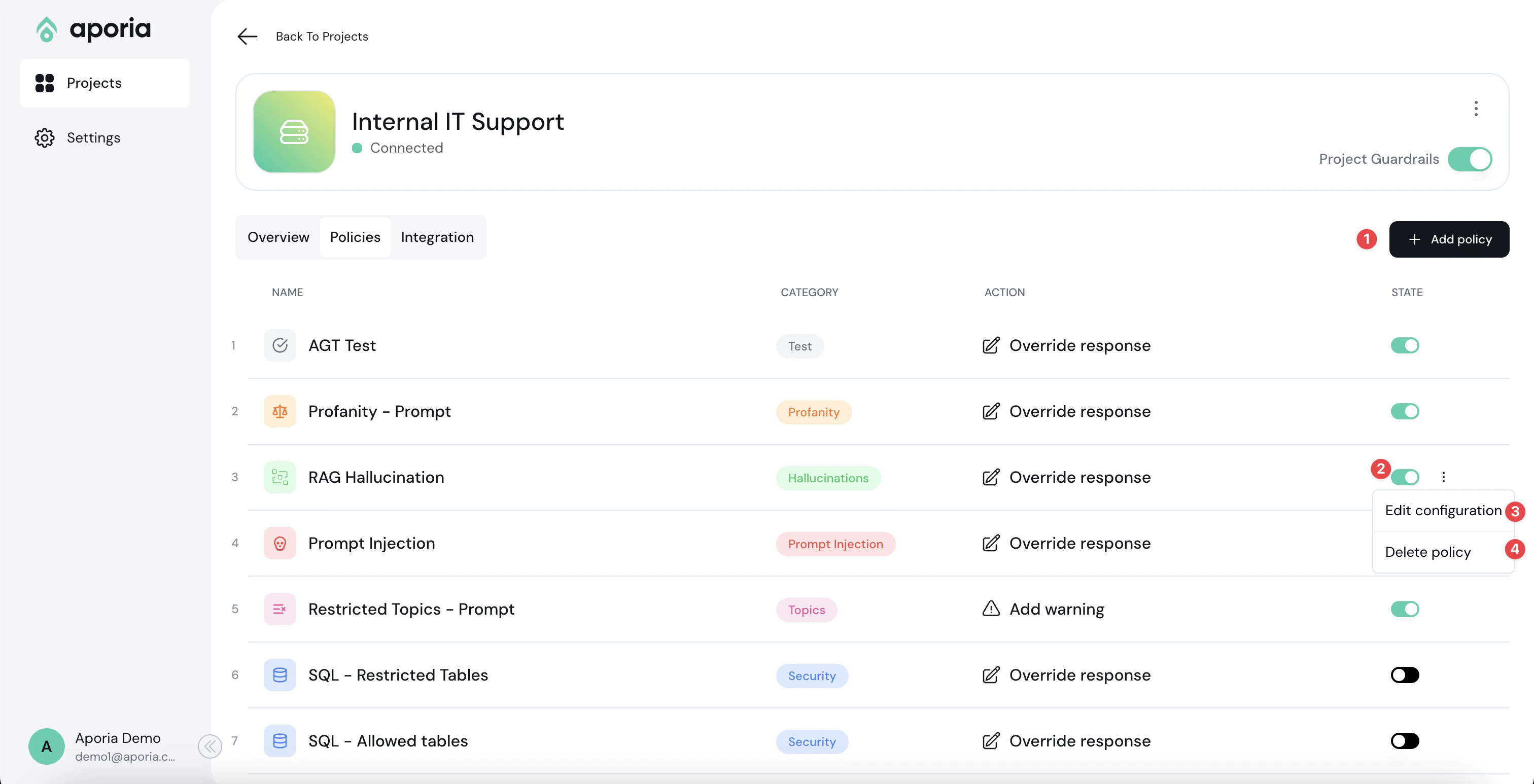 Here, you can add new policies1, customize2, and delete existing ones3.
A policy in Aporia is a specific safeguard against a single LLM risk.
Examples include RAG hallucinations, Restricted topics, or Prompt Injection. Each policy allows for various customizations, such as adjustable sensitivity levels or topics to restrict.
## Adding a policy
To add a new policy, click **Add policy** to enter the policy catalog:
Here, you can add new policies1, customize2, and delete existing ones3.
A policy in Aporia is a specific safeguard against a single LLM risk.
Examples include RAG hallucinations, Restricted topics, or Prompt Injection. Each policy allows for various customizations, such as adjustable sensitivity levels or topics to restrict.
## Adding a policy
To add a new policy, click **Add policy** to enter the policy catalog:
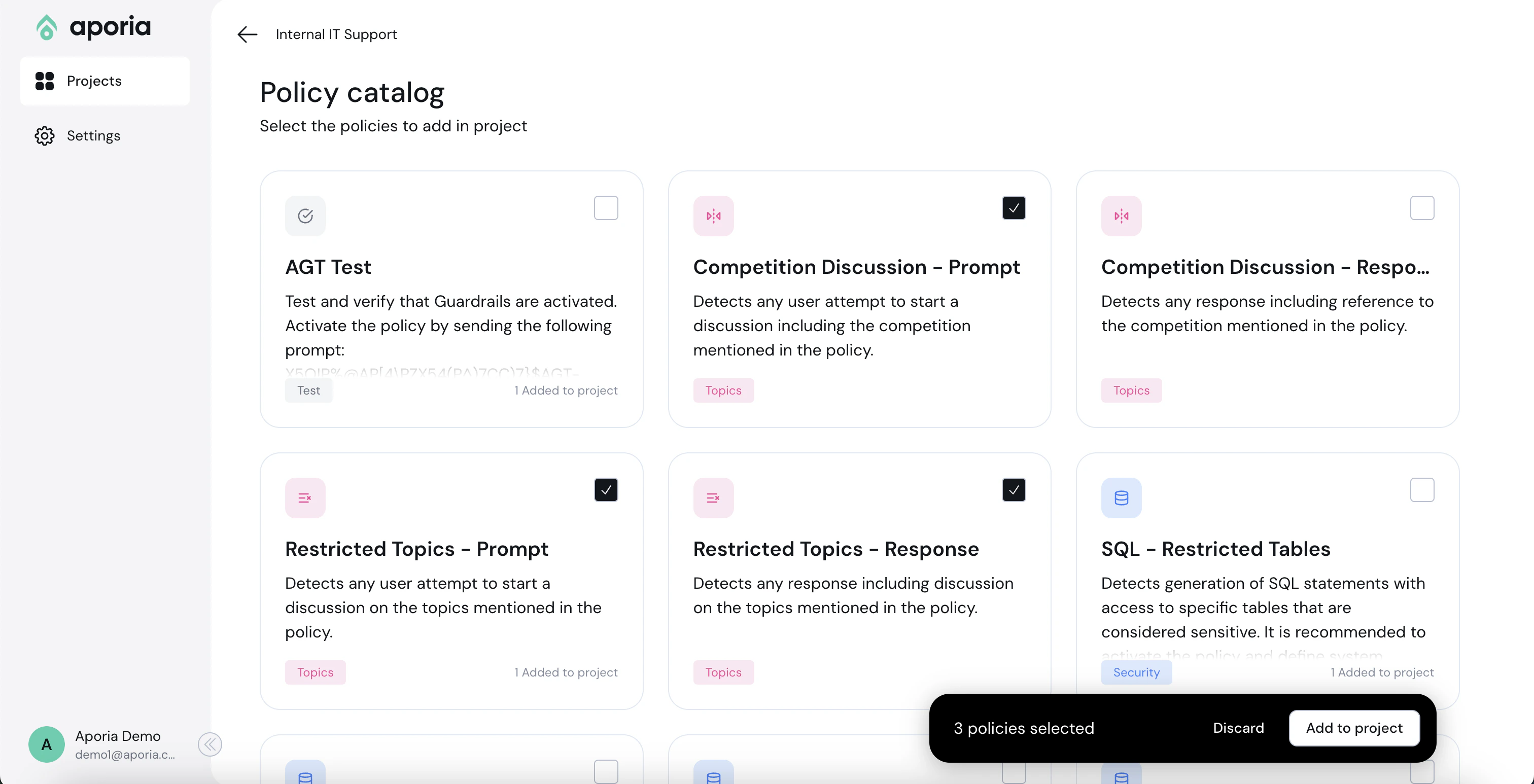 Select the policies you'd like to add and click **Add to project**.
## Editing a policy
Next to the new policy you want to edit, select the ellipses (…) menu and click **Edit configuration**.
Select the policies you'd like to add and click **Add to project**.
## Editing a policy
Next to the new policy you want to edit, select the ellipses (…) menu and click **Edit configuration**.
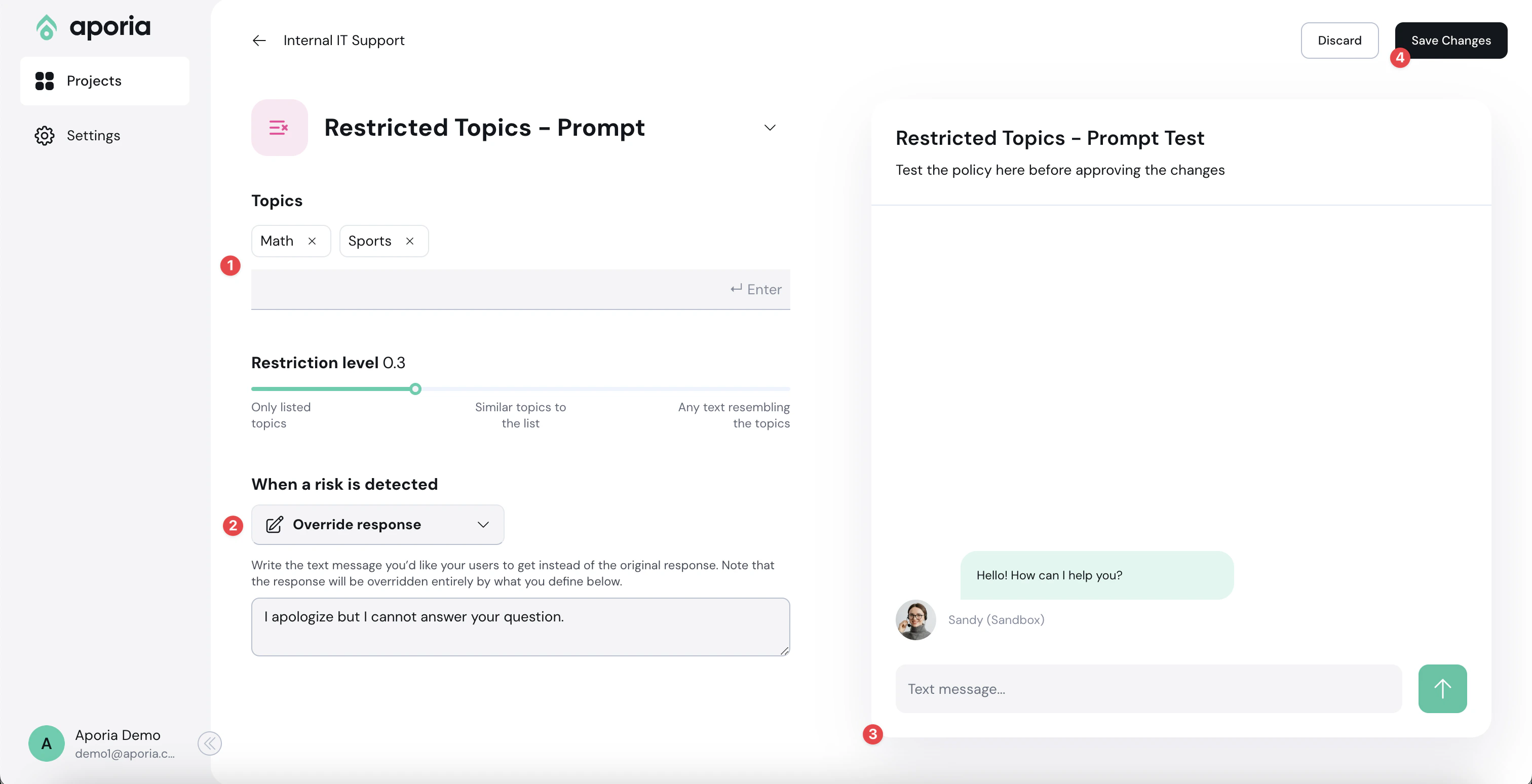 Overview of the edit configuration page:
1. **Policy Detection Customization:** Use this section to customize the policy detection algorithm (e.g. topics to restrict). The configuration options here depend on the type of policy you are editing.
2. **Action Customization:** Customize the actions taken when a violation is detected in this section.
3. **Sandbox:** Test your policy configurations using the chatbot sandbox. Enable or disable a policy using the **Policy State** toggle.
4. **Save Changes:** Click this button to save and implement your changes.
The [Quickstart](/get-started/quickstart) guide includes an end-to-end example of how to customize a policy.
## Deleting a policy
To delete a policy:
1. [Log into your Aporia Guardrails account.](https://guardrails.aporia.com)
2. Select your project and click on the **Policies** tab.
3. Next to the policy you’d like to remove, select the ellipses (…) and then select **Delete policy** from the menu.
## Custom policies
You can also build your own custom policies by writing a prompt. See the [Custom Policy](/policies/custom-policy) documentation for more information.
Overview of the edit configuration page:
1. **Policy Detection Customization:** Use this section to customize the policy detection algorithm (e.g. topics to restrict). The configuration options here depend on the type of policy you are editing.
2. **Action Customization:** Customize the actions taken when a violation is detected in this section.
3. **Sandbox:** Test your policy configurations using the chatbot sandbox. Enable or disable a policy using the **Policy State** toggle.
4. **Save Changes:** Click this button to save and implement your changes.
The [Quickstart](/get-started/quickstart) guide includes an end-to-end example of how to customize a policy.
## Deleting a policy
To delete a policy:
1. [Log into your Aporia Guardrails account.](https://guardrails.aporia.com)
2. Select your project and click on the **Policies** tab.
3. Next to the policy you’d like to remove, select the ellipses (…) and then select **Delete policy** from the menu.
## Custom policies
You can also build your own custom policies by writing a prompt. See the [Custom Policy](/policies/custom-policy) documentation for more information.