> ## Documentation Index
> Fetch the complete documentation index at: https://gr-docs.aporia.com/llms.txt
> Use this file to discover all available pages before exploring further.
# Multi-factor Authentication (MFA)
## MFA setup guide
To set up multi-factor authentication (MFA) for your user, follow these steps:
1. [Log into your Aporia Guardrails account.](https://guardrails.aporia.com)
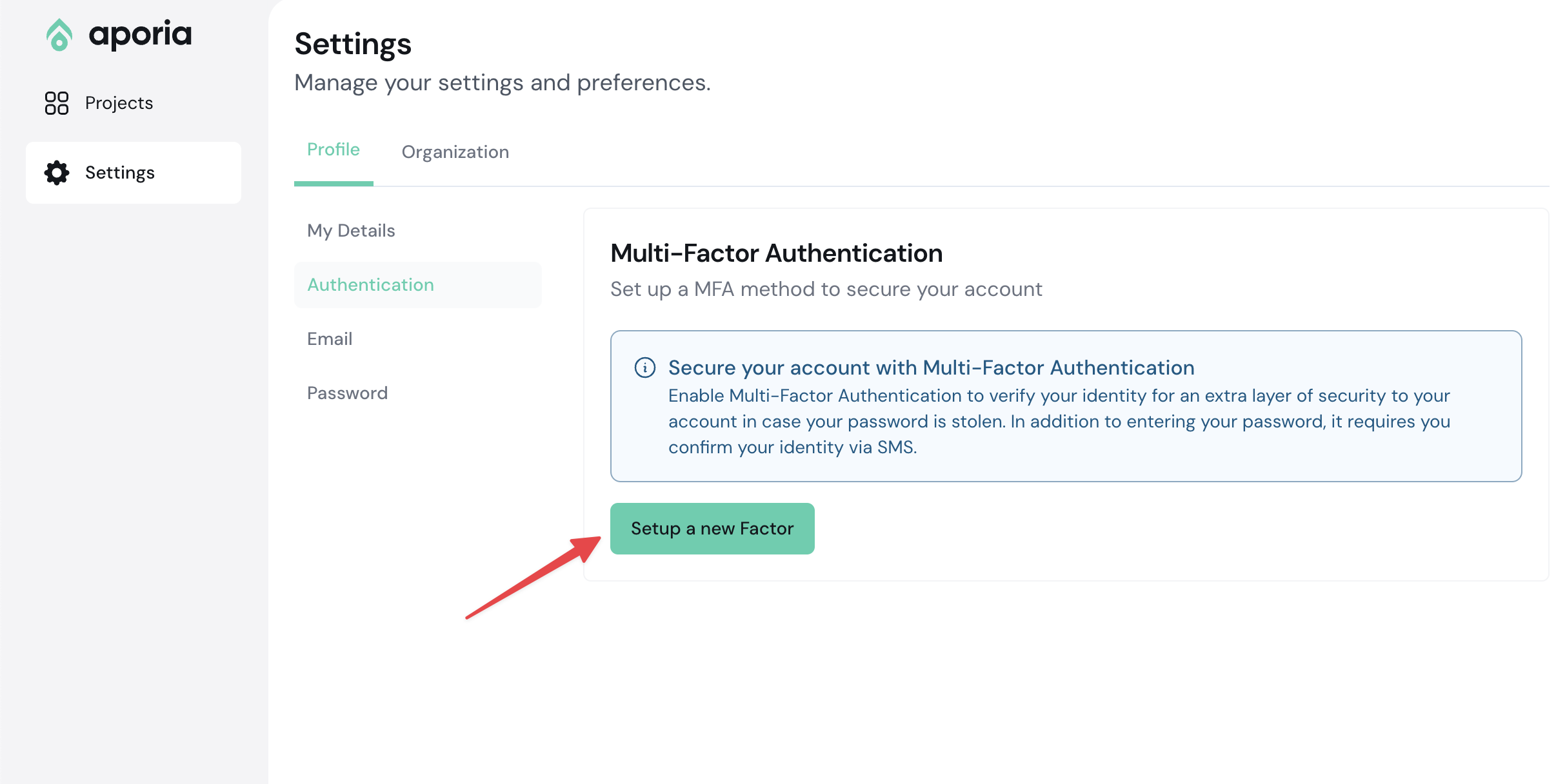
2. On the sidebar, click **Settings**.
3. Select the **Profile** tab and go to the **Authentication** section
4. Click **Setup a new Factor**
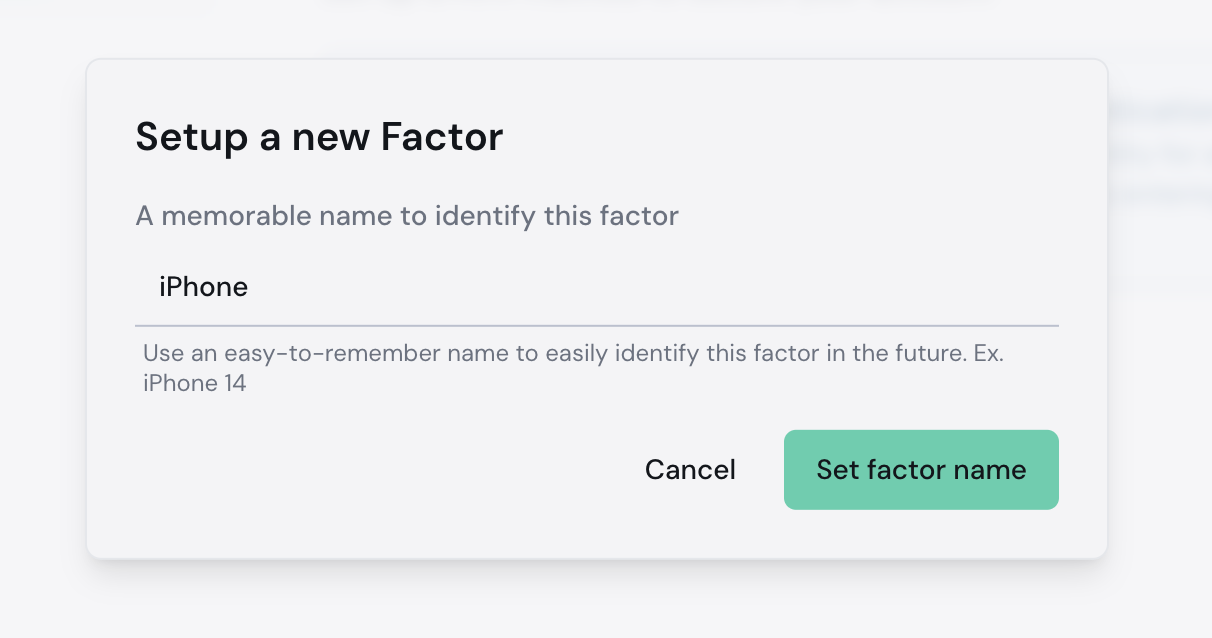
 5. Provide a memorable name to identify this factor (e.g. Bitwarden, Google Authenticator, iPhone 14, etc.)
6. Click **Set factor name**.
5. Provide a memorable name to identify this factor (e.g. Bitwarden, Google Authenticator, iPhone 14, etc.)
6. Click **Set factor name**.
 7. A QR code will appear, scan it in your MFA app and enter the code generated:
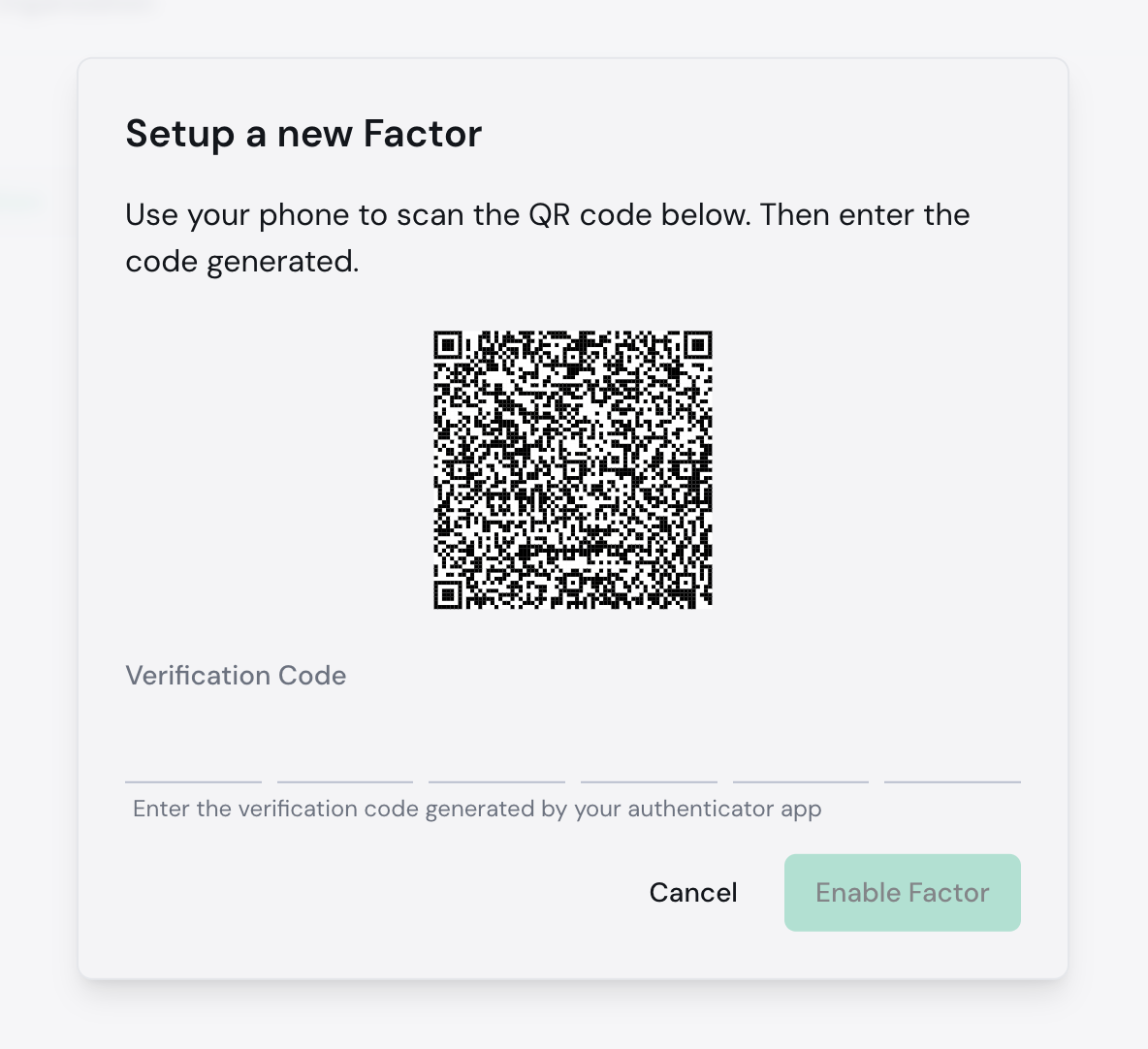 8. Click **Enable Factor**.
All done!
8. Click **Enable Factor**.
All done!